
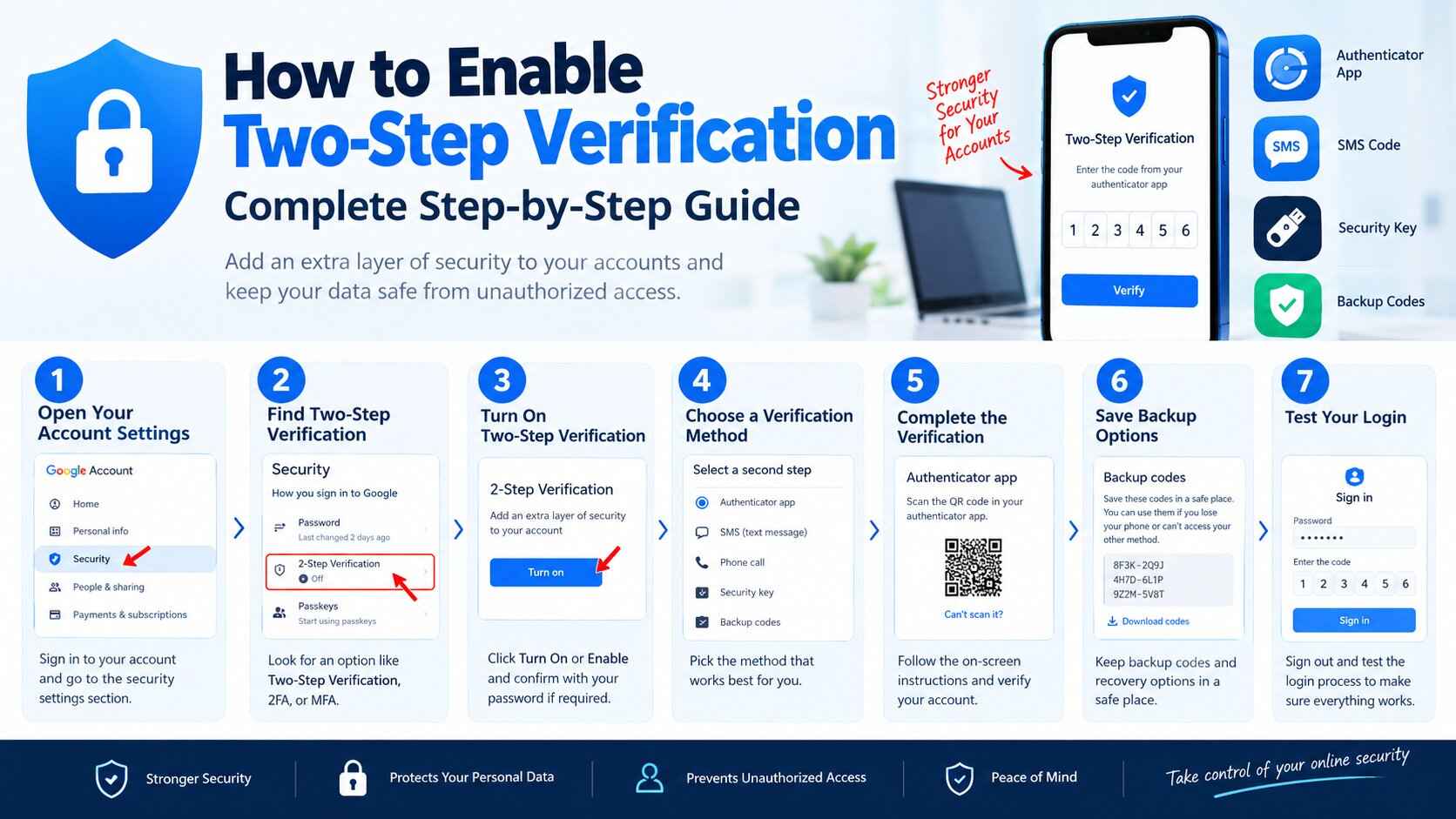
How to Enable Two-Step Verification: Complete Step-by-Step Guide
Protecting your online accounts is more important than ever. A strong password is an important first step, but passwords can still be stolen through phishing, data breaches, malware, or other attacks. Two-step verification adds another layer of protection by requiring an additional verification method when you sign in.
If you are searching for how to enable two step verification, the process is usually straightforward. Most major online services provide the feature through their account security settings.
In this guide, you’ll learn what two-step verification is, how it works, how to enable it, which verification methods you can use, and what to do if you lose access to your phone.
What Is Two-Step Verification?
Two-step verification, also called 2-step verification, 2SV, or two-factor authentication (2FA), is an account security feature that requires two different steps when you sign in.
The first step is usually your password.
The second step could be:
- A verification code
- An authentication app
- A notification on your phone
- A passkey
- A security key
- A backup code
- Another approved verification method
For example, if someone discovers your password, they may still be unable to access your account because they also need the second verification method.
Google describes 2-Step Verification as an additional layer of security that helps protect an account if a password is stolen.
Why Should You Enable Two-Step Verification?
Passwords are often the first target when criminals try to access online accounts. A password may be exposed through phishing, reused passwords, malware, or a compromised website.
Two-step verification makes account access more difficult because knowing the password alone is no longer enough.
It can help protect accounts containing:
- Email messages
- Personal information
- Business documents
- Photos and videos
- Payment information
- Social media profiles
- Website administration
- Cloud storage
- Customer information
Microsoft also explains that multifactor authentication adds an additional security factor beyond the password, making it harder for someone without the user’s device or other verification method to access an account.
How to Enable Two-Step Verification
The exact menu names depend on the service you’re using, but the general process is similar.
Step 1: Open Your Account Settings
Sign in to the account you want to protect.
Look for a section such as:
- Account Settings
- Security
- Privacy & Security
- Login & Security
- Security & Sign-in
Do not follow links from suspicious emails or text messages. When possible, open the service’s official website or app yourself.
Step 2: Open the Security Settings
Look for an option related to additional sign-in protection.
Depending on the service, it may be called:
- Two-Step Verification
- 2-Step Verification
- Two-Factor Authentication
- 2FA
- Multi-Factor Authentication
- MFA
Select the appropriate option.
Step 3: Turn On Two-Step Verification
Select Turn On, Enable, or a similar button.
The service may ask you to enter your password again before allowing you to change security settings.
This additional confirmation helps prevent someone who temporarily has access to an unlocked account from changing important security settings.
Step 4: Choose a Verification Method
The service may offer several options.
Common choices include:
- Authentication app
- Phone notification
- SMS code
- Voice call
- Passkey
- Security key
- Backup codes
Choose a method that you can reliably access.
For stronger protection, consider using phishing-resistant options such as passkeys or security keys when the service supports them. Google specifically identifies passkeys and hardware security keys as options that can provide increased protection against phishing.
Step 5: Complete the Verification
Follow the instructions displayed by the service.
For an authenticator app, you may need to scan a QR code or enter a setup key.
For SMS verification, you may receive a temporary code on your phone.
For a security key, you may need to connect or tap the physical key.
Step 6: Save Your Backup Options
This is an important step that many people overlook.
After enabling two-step verification, look for backup options such as:
- Backup codes
- Additional phone numbers
- Another authentication device
- Passkey
- Security key
- Recovery email
Backup codes can be particularly useful if you lose your phone.
Google, for example, provides backup codes that can be used as an alternative second step when you cannot access your normal verification method.
Step 7: Test Your Login
After setup is complete, sign out and test the login process if appropriate.
You should be able to:
- Enter your username or email.
- Enter your password.
- Complete the second verification step.
- Access your account.
Make sure your backup method also works before you depend on it during an emergency.
How to Enable Two-Step Verification on Google
Google calls its feature 2-Step Verification.
To enable it:
- Open your Google Account.
- Go to Security & sign-in.
- Find How you sign in to Google.
- Select 2-Step Verification.
- Select Turn on 2-Step Verification.
- Follow the instructions shown on the screen.
Google’s current instructions use this security section for enabling 2-Step Verification.
Google can offer different second-step methods, including Google prompts, authentication codes, passkeys, security keys, SMS or voice verification, and backup codes, depending on the account and setup.
Google Prompts
Google prompts can send a notification to a signed-in device asking you to confirm a login.
Instead of manually entering a code, you may simply approve or reject the sign-in.
Google recommends prompts in situations where they are available because they can provide more protection against some phone-number-based attacks than SMS codes.
Google Authenticator
An authenticator app can generate temporary verification codes.
This can be useful when you don’t have reliable mobile service because the codes can be generated by the app rather than delivered by SMS.
Google Backup Codes
Backup codes are another recovery option.
Keep them somewhere secure and do not share them with anyone. Google warns users never to give verification codes to people who request them.
How to Enable Two-Step Verification on Microsoft
Microsoft accounts can use additional verification methods such as the Microsoft Authenticator app and other security options.
For a personal Microsoft account, start from your Microsoft account security settings and look for the options for managing how you sign in.
Microsoft’s current documentation also describes enabling two-step verification from the account security area and setting up Authenticator as a verification method.
A typical setup process is:
- Sign in to your Microsoft account.
- Open the account security settings.
- Select the option to manage how you sign in.
- Find the two-step verification section.
- Turn the feature on.
- Follow the instructions.
- Add Microsoft Authenticator or another available verification method.
- Complete the verification test.
The exact options can differ between personal Microsoft accounts and organizational Microsoft 365 accounts.
How to Enable Two-Step Verification on Social Media
Many social media platforms provide two-factor authentication in their security settings.
The general process is:
- Open the official app.
- Go to your profile or account settings.
- Open the security section.
- Find Two-Factor Authentication or Two-Step Verification.
- Select your preferred verification method.
- Complete the verification process.
- Save backup or recovery options.
The wording and available methods can change as platforms update their security systems, so use the platform’s current help documentation when following detailed instructions.
How to Enable Two-Step Verification on WordPress
WordPress websites require special attention because administrator accounts can provide access to website content, plugins, themes, settings, and other important functions.
If your WordPress hosting or security setup supports two-factor authentication, enable it for administrator accounts.
A typical WordPress 2FA setup involves:
- Sign in to your WordPress administrator account.
- Check your security plugin or hosting security settings.
- Find the two-factor authentication option.
- Enable 2FA for administrator accounts.
- Connect an authenticator app or supported verification method.
- Save backup codes.
- Test the login process.
If your website has multiple administrators, consider requiring stronger authentication for every administrator rather than protecting only one account.
Which Two-Step Verification Method Should You Use?
Different verification methods provide different levels of convenience and protection.
SMS Verification
SMS sends a temporary code to your phone.
Advantages:
- Easy to understand
- Usually simple to set up
- Doesn’t require an authentication app
Limitations:
Phone-number-based attacks can create additional risk. Google notes that SMS and voice verification codes can be vulnerable to phone-number-based attacks.
Authentication Apps
Authentication apps generate temporary codes.
Advantages:
- Doesn’t always require mobile service
- Useful as a backup
- Widely supported
Limitations:
- You need access to the configured device
- Losing the device can create recovery problems if no backup method exists
Push Notifications
A service sends a notification to your trusted device.
You approve or reject the sign-in attempt.
This can be easier than manually entering a code.
Passkeys
Passkeys use cryptographic credentials associated with your devices.
Depending on the device, you may authenticate using a fingerprint, face scan, PIN, or screen lock.
Google states that passkeys can provide a secure alternative to passwords and can help protect against phishing.
Security Keys
A security key is a physical device used to verify your identity.
These can provide strong protection against phishing and are particularly useful for important business or administrative accounts.
What Should You Do If You Lose Your Phone?
Losing your phone does not necessarily mean you have permanently lost access to your account.
This is why setting up recovery methods before you need them is important.
Depending on the service, you may be able to use:
- Backup codes
- Another trusted device
- Another registered phone
- An authenticator on another device
- A security key
- A passkey
- Account recovery
For Google accounts, Google lists backup codes, another signed-in phone, another registered phone number, a hardware security key, and passkeys among possible recovery options.
If your phone was stolen, you should also secure the device itself and review your account’s active sessions and security settings.
What Are Backup Codes?
Backup codes are one-time codes that can be used when your normal second verification method is unavailable.
For example, you might need one if:
- Your phone is lost.
- Your phone battery is dead.
- You don’t have mobile service.
- Your authenticator app is unavailable.
- You are traveling without access to your normal device.
Store backup codes somewhere secure.
Do not:
- Post them online
- Send them to other people
- Store them in an easily accessible public document
- Give them to someone claiming to be technical support
Common Two-Step Verification Problems
I Didn’t Receive the Verification Code
First, check whether the service sent a push notification instead.
If you’re using SMS:
- Check your mobile signal.
- Confirm the phone number.
- Wait briefly before requesting another code.
- Make sure you’re using the newest code if multiple codes were requested.
Google notes that only the newest verification code may work when multiple codes have been requested.
My Authenticator App Isn’t Working
Check that:
- The device’s time is correct.
- You are using the correct account.
- The authenticator entry hasn’t been deleted.
- You have a backup verification method.
If you’ve changed phones, you may need to transfer or reconfigure the authenticator according to the service’s recovery procedure.
I Lost My Phone
Use your backup method.
Depending on the service, this could be a backup code, another trusted device, security key, passkey, or account recovery process.
I Can’t Log In After Enabling 2FA
Don’t repeatedly guess codes.
Instead, look for Try another way, Use another verification method, or the service’s official account recovery option.
For work or school accounts, your organization’s administrator may control two-step verification requirements. Google specifically notes that organization-managed accounts may require administrator assistance.
Best Practices for Two-Step Verification
Enabling two-step verification is only part of account security. Follow these additional practices:
Use a Unique Password
Don’t reuse the same password across multiple websites.
If one service is compromised, reused credentials could put other accounts at risk.
Consider a Password Manager
A password manager can help you create and store unique passwords.
Protect Your Recovery Information
Keep recovery email addresses and phone numbers current.
Save Backup Codes Securely
Store them somewhere that is accessible when you need them but not publicly available.
Don’t Share Verification Codes
Legitimate support staff should not need you to send them your temporary login verification code.
If someone asks you to provide a verification code, treat the request as suspicious.
Be Careful With Login Prompts
Never approve a login notification you did not initiate.
An unexpected prompt could mean someone is attempting to sign in using your password.
Use Phishing-Resistant Methods When Available
For important accounts, consider passkeys or hardware security keys where supported.
These methods can provide stronger protection against phishing than traditional password-and-code combinations.
Two-Step Verification vs Two-Factor Authentication
The terms two-step verification and two-factor authentication are often used interchangeably, but they aren’t always technically identical.
Two-factor authentication generally means that the two authentication factors come from different categories, such as:
- Something you know — password
- Something you have — phone or security key
- Something you are — fingerprint or facial recognition
Two-step verification is a broader term for requiring an additional verification step.
For everyday users, both terms generally refer to adding an additional security check beyond the password.
Does Two-Step Verification Make an Account Completely Secure?
No security feature can guarantee that an account can never be compromised.
Two-step verification significantly strengthens account security, but you should still:
- Use unique passwords.
- Watch for phishing.
- Keep devices updated.
- Protect recovery information.
- Review account activity.
- Never share verification codes.
- Secure administrator accounts.
Google recommends multiple security and recovery options, including passkeys, security keys, prompts, authentication apps, and backup codes.
Frequently Asked Questions
What is the easiest way to enable two-step verification?
Open your account’s security settings, find Two-Step Verification, Two-Factor Authentication, or MFA, and follow the setup instructions.
Is two-step verification free?
For many major online services, the built-in security feature is available without an additional subscription. However, some organizations may use paid security products or hardware security keys.
Can I use two-step verification without a phone?
In many cases, yes. Depending on the service, you may be able to use a passkey, security key, authenticator app, or backup code.
Is SMS two-step verification safe?
SMS verification is better than relying only on a password, but it has weaknesses associated with phone-number-based attacks. Where available, consider stronger options such as an authenticator app, passkey, or security key.
What happens if I lose my phone?
Use a backup method such as a backup code, another trusted device, security key, passkey, or account recovery option. The available choices depend on the service.
Should I enable two-step verification for my email?
Yes. Email accounts are particularly important because they may be used to reset passwords for other services. Protecting your primary email account with additional authentication can help protect other accounts connected to it.
Should I enable 2FA on my WordPress website?
If your WordPress setup supports it, adding two-factor authentication to administrator accounts can provide an additional layer of protection against stolen passwords.
What is the difference between 2FA and 2SV?
2FA generally refers to authentication using two different factors, while 2SV refers more broadly to requiring two verification steps. The terms are often used similarly in consumer services.
Final Thoughts
If you were searching for how to enable two step verification, the process is usually simple: open your account’s security settings, turn on two-step verification or two-factor authentication, select a verification method, complete the setup, and save your recovery options.
For important accounts, don’t stop after enabling the feature. Keep your recovery information updated, protect your passwords, avoid suspicious login requests, and consider stronger options such as passkeys or security keys when available.
Two-step verification adds an important layer of protection because a stolen password alone may no longer be enough to access your account. UAEseo.Agency is an informational plateform The exact setup and available verification methods depend on the service, so always follow the current security instructions provided by the platform.