
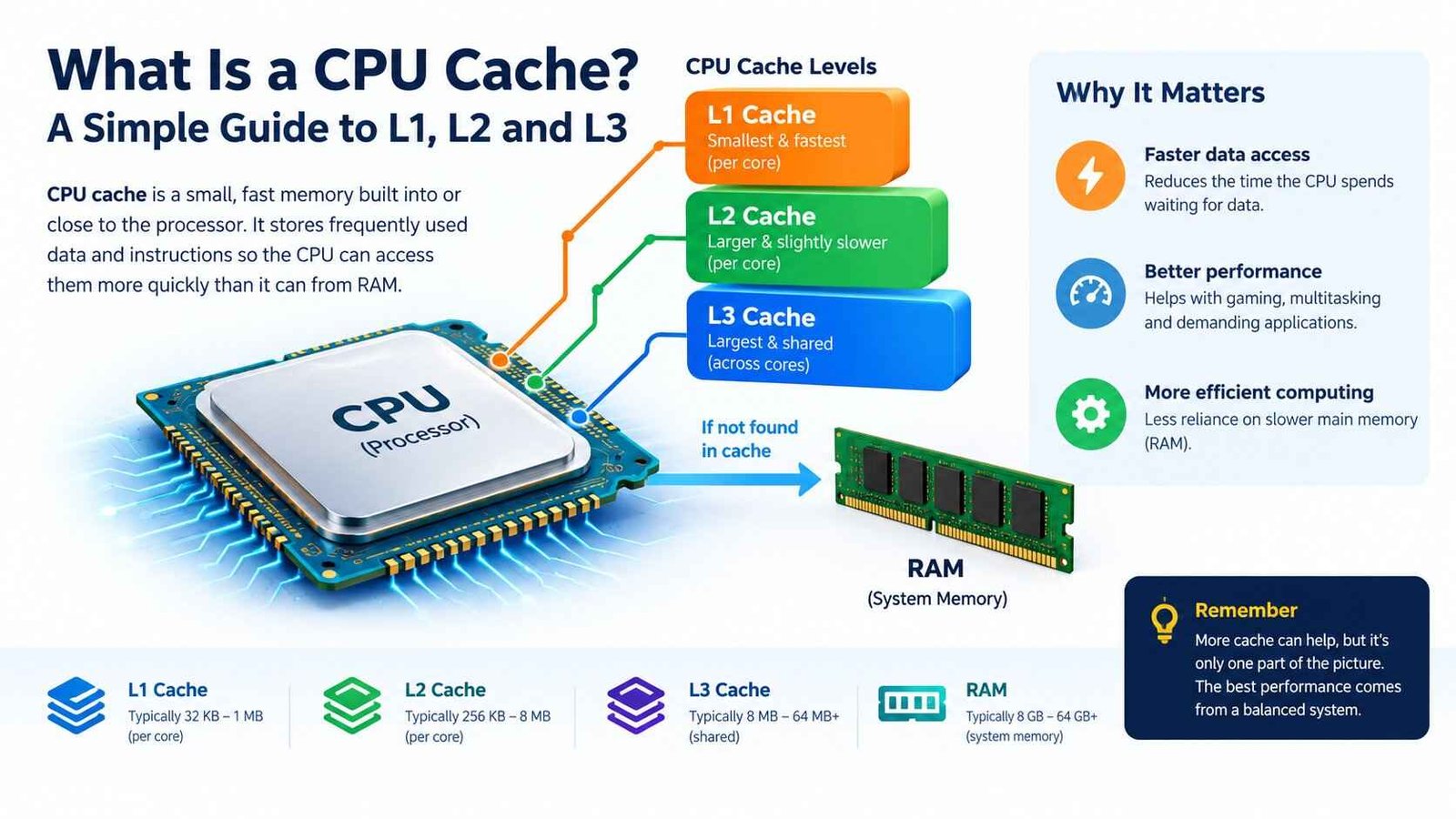
What Is a CPU Cache? A Simple Guide to L1, L2 and L3
A computer processor performs billions of operations every second, but it needs data and instructions to carry out those operations. If the processor had to wait for main system memory every time it needed information, many tasks would take longer to complete. This is one of the problems that CPU cache memory helps solve.
A CPU cache is a small, high-speed memory area located on or very close to the processor. It stores copies of data and instructions that the CPU may need again, helping it access frequently used information faster than it typically could from system RAM. Modern processors commonly use several cache levels, including L1, L2 and L3. Each level balances speed, size and design differently. AMD Documentation+2
Understanding CPU cache can help you make sense of processor specifications when choosing a desktop computer, laptop or gaming PC. It can also explain why two processors with similar clock speeds may perform differently in certain workloads.
Safety Note: uaeseo.agency is an independent informational hub that provides educational content for general information purposes only. We aim to share helpful and accurate information, but content may not always reflect the latest updates. Always verify important technical details with official sources or qualified professionals before making decisions.
What Is a CPU Cache?
A CPU cache is a small, fast memory built into or closely integrated with a processor that keeps copies of useful data and instructions for quick access.
The word cache refers to a place where information is kept temporarily so it can be retrieved more quickly later. Rather than repeatedly fetching the same information from slower main memory, the processor can sometimes retrieve it from its cache.
Think of a CPU as a person working at a desk. The computer’s RAM is like a filing cabinet across the room, while the CPU cache is like a small set of documents placed directly on the desk. The filing cabinet can hold much more information, but grabbing a document from the desk is usually quicker.
This is a simplified analogy, but it captures the main purpose of cache memory: reduce the time the processor spends waiting for data.
CPU caches store copies of information rather than replacing RAM. The operating system and applications still rely on system memory to hold the data they need, while the processor’s cache provides a faster route to some of that information.
How Does CPU Cache Work?
CPU cache works by keeping copies of data and instructions that the processor is likely to use. When the CPU requests information, the hardware checks the relevant cache level. What happens next depends on whether the requested information is already available.
CPU level cache — L1, L2, L3, RAM(in-memory) | by Umesh Kumar Yadav | Medium
1. The CPU requests data
A program asks the processor to perform an operation that requires particular data or instructions.
CPU Caches: Why tiny memory matters? – by Jakub Slys
2. The processor checks its cache
The processor looks for the requested information in the relevant cache level or levels.
3. A cache hit or cache miss occurs
If the data is available in the checked cache, the CPU has a cache hit. If it is not available, a cache miss occurs and the processor must obtain it from another level or from main memory.
Bộ nhớ đệm trong CPU là gì? Ứng dụng thực tế của Cache CPU
4. The processor continues working
The requested data is supplied, and copies may be placed in cache according to the processor’s caching policies, making future access potentially faster.
A cache hit is generally faster than fetching the same information from a lower level of the memory hierarchy. A cache miss does not mean the computer is broken; it is a normal part of how processors operate. The performance impact depends on where the information is found next and how often misses occur. AMD Documentation+1
What Are L1, L2 and L3 CPU Cache?
Most discussions of processor cache focus on three levels: L1, L2 and L3. The levels form a memory hierarchy in which the closer, smaller caches are generally faster, while later levels offer more capacity.
L1
Level 1
L1 cache — smallest and fastest
L1 cache sits very close to a processor core. It is commonly divided into an instruction cache, which stores instructions, and a data cache, which stores data. Its capacity is usually small because it is designed for very fast access.
L2
Level 2
L2 cache — larger, usually a little slower
L2 cache provides additional fast storage for data and instructions that are not available in L1. It is often dedicated to an individual core, although cache arrangements vary by processor design.
L3
Level 3
L3 cache — larger, often shared
L3 cache typically has more capacity than L1 or L2 and is often shared among multiple CPU cores. It can reduce the need to access system RAM, although it generally has higher access latency than L1 and L2.
These are general patterns, not universal rules. The size, speed, sharing arrangement and organization of each cache depend on the processor’s architecture. Some CPUs use different cache hierarchies, and a cache level’s capacity alone does not tell you everything about its performance. AMD Documentation+2
L1 cache explained
L1 is typically the first cache level used by a CPU core. Because it is designed for very low-latency access, its capacity is limited compared with later levels.
Many processors separate L1 into two parts:
- L1 instruction cache: Keeps recently or frequently needed program instructions.
- L1 data cache: Keeps data that instructions may need to read or update.
This division helps the processor access instructions and data efficiently. Exact capacities vary, so you should check the specifications for the particular processor rather than assume every CPU has the same L1 cache size.
L2 cache explained
L2 gives the processor additional cache capacity beyond L1. If a core cannot find requested information in its L1 cache, the information may be available in L2.
L2 is generally larger than L1 but may take longer to access. On many CPUs, each core has its own L2 cache; other designs may organize or share cache resources differently.
L2 is important because it can keep more working data close to the processor, reducing some trips to larger caches or RAM.
L3 cache explained
L3 is often the largest of the standard L1/L2/L3 cache levels. It is commonly shared across several cores, although the precise layout depends on the CPU.
A larger L3 cache can help workloads that repeatedly access a large set of data. Some gaming and computing workloads benefit from additional cache, but the result depends on the application, processor architecture, memory behavior and other hardware characteristics.
For this reason, a processor with more L3 cache is not automatically faster in every task.
CPU Cache vs RAM: What Is the Difference?
CPU cache and RAM are both types of memory, but they serve different purposes.
| Feature | CPU cache | System RAM |
|---|---|---|
| Main purpose | Keeps useful data close to the CPU | Holds data and programs currently in use |
| Speed | Generally faster to access | Generally slower than CPU cache |
| Capacity | Usually measured in KB or MB per cache level | Commonly measured in GB |
| Location | On or closely integrated with the processor | Separate memory modules or memory packages |
| Management | Managed primarily by processor hardware | Managed through the operating system and memory hardware |
| Cost per bit | Generally higher | Generally lower |
The most important distinction is that CPU cache prioritizes speed, while RAM provides much greater capacity. They work together rather than competing with one another. AMD Documentation+1
For example, a laptop with 16 GB of RAM and a processor with 12 MB of L3 cache has two different memory resources. The 16 GB of RAM supports running programs and keeping their data available. The L3 cache helps the CPU access certain data more quickly.
You cannot directly replace 16 GB of RAM with 16 GB of CPU cache and expect the same computer design. Cache memory is more specialized, and large cache capacities involve different costs and hardware considerations.
Why Is CPU Cache Important?
CPU cache matters because a processor can perform calculations very quickly, but it may need to wait when the required data is not readily available. Cache memory reduces some of these delays.
Here are the main benefits.
1. Faster data access
When the CPU finds requested data in a cache, it can usually retrieve it more quickly than if it had to fetch it from system RAM. This helps reduce average memory-access time.
2. Better application performance
Programs often reuse data and instructions. When useful information remains in cache, the processor may avoid repeatedly accessing slower memory. This can improve performance in workloads that benefit from data reuse.
3. More efficient gaming
Games can involve frequent processing of game logic, character states, physics, and other data. Some games benefit significantly from CPU cache because they repeatedly access related information.
However, gaming performance also depends on the CPU architecture, clock speed, core performance, graphics card, RAM, game engine and resolution. A processor with a larger cache is not guaranteed to deliver a higher frame rate in every game.
4. Improved multitasking and computing
Some workloads, including simulations, data processing and certain software development tasks, can benefit from a cache that keeps more of their working data close to the CPU.
The benefit varies by application. A workload that repeatedly accesses the same or nearby data may benefit more than one that accesses a large amount of unpredictable data.
5. Reduced pressure on main memory
When data is served from cache, the processor may not need to request it from RAM. This can reduce memory traffic and help the system use its memory resources more efficiently. Android Developers+1
Does More CPU Cache Mean a Faster Processor?
Not always. A larger cache can improve performance when a workload can make effective use of the additional capacity. It does not automatically make every application faster.
Imagine comparing two processors:
- Processor A: Has a smaller L3 cache but strong single-core performance and high clock speeds.
- Processor B: Has a larger L3 cache but different clock speeds, core design and power characteristics.
Processor B might perform better in a particular game or data-heavy application, while Processor A could perform better in another task. You cannot determine the winner from cache size alone.
When comparing CPUs, consider these specifications together:
- CPU architecture and generation
- Single-core and multi-core performance
- Clock speeds and boost behavior
- Core and thread count
- L1, L2 and L3 cache capacities
- Power consumption and cooling requirements
- Performance benchmarks for your intended applications
The most useful approach is to compare actual test results for the tasks you care about instead of choosing a processor based on one specification.
How Much CPU Cache Do You Need?
There is no single cache size that is best for everyone. The right choice depends on the processor, your budget and the applications you use.
Everyday computing
For web browsing, office documents, video streaming and routine tasks, choose a balanced processor with good overall performance. Cache size is usually less important than the processor’s complete specifications.
Gaming
Cache can be an important factor in some games, particularly when the game benefits from additional CPU-side data access. Compare gaming benchmarks for your favorite titles rather than relying only on cache figures.
Programming and content creation
Compiling code, editing media, rendering and running virtual machines have different hardware requirements. Look at application-specific benchmarks, core performance and memory capacity alongside cache.
Heavy data processing
Scientific computing, databases and other data-intensive workloads may benefit from larger caches, but the result depends on access patterns, memory bandwidth and software design.
A good buying rule is to choose the processor that performs best for your workload within your budget. Do not pay extra for cache capacity unless reliable benchmarks suggest it provides a useful advantage for you.
How to Check Your CPU Cache Size in Windows
If you want to find out how much cache your current processor has, you can use a few methods.
Method 1: Check the processor specifications
- Find the exact model name of your CPU.
- Visit the processor manufacturer’s official website.
- Open the specifications page for that model.
- Look for L1, L2 and L3 cache information.
For Intel processors, Intel’s support documentation explains how to use the Intel Processor Identification Utility to view cache sizes for supported processors. Intel
For AMD processors, check the official specifications page for your exact CPU model. Cache configurations differ between models and generations.
Method 2: Use a hardware information utility
A reputable hardware information tool can display details such as cache capacities, processor cores, threads and clock speeds.
Check that the utility supports your processor and download it from its official website. Avoid downloading unknown tools from untrusted sources.
Method 3: Use Windows system information
Windows’ built-in system information and Task Manager can show useful CPU details, but they do not always display every cache level or its complete configuration. If you need precise L1, L2 and L3 values, the manufacturer’s specifications or a dedicated hardware information tool may be more useful.
What Is a CPU Cache Hit?
A CPU cache hit occurs when the processor finds the requested information in the cache level it checks.
For example, if a program needs data that is already available in the relevant L1 cache, the processor can access it without fetching it from a lower level of the memory hierarchy.
Cache hits help reduce the average time required to retrieve data.
What Is a CPU Cache Miss?
A CPU cache miss happens when the requested information is not found in the cache being checked. The processor must then obtain it from another cache level or from main memory, depending on the architecture and the request.
A cache miss is not necessarily a serious performance problem. It is normal for caches to hold only a portion of the information that programs use.
What matters is how often misses happen and how expensive they are. If the processor repeatedly needs data that is not available in its caches, memory access can become a bottleneck.
Software developers can sometimes reduce cache misses by organizing data and algorithms to make better use of locality — the tendency for programs to reuse recently accessed data or access nearby memory locations.
Is CPU Cache the Same as Browser Cache?
No. CPU cache and browser cache are different technologies that happen to use the same word.
| CPU cache | Browser cache |
|---|---|
| A hardware memory resource | A software-managed storage mechanism |
| Helps the processor access data and instructions faster | Stores website resources such as images, scripts and stylesheets |
| Managed by processor hardware | Managed by the browser and its settings |
| Typically uses very fast memory close to the CPU | Commonly uses local storage such as disk or other browser-managed storage |
Clearing your browser cache does not clear or increase your CPU’s L1, L2 or L3 cache capacity.
Similarly, increasing your processor’s cache capacity is not a way to fix an outdated browser page or a website loading an old image.
Can You Increase CPU Cache?
For most desktop and laptop users, CPU cache capacity is fixed by the processor’s hardware design. You generally cannot upgrade L1, L2 or L3 cache separately the way you might add RAM or replace a storage drive.
If you need a CPU with more cache, you would usually need to choose a different processor that offers the capacity and performance you want. Compatibility with the motherboard, cooling system, power supply and computer design must also be considered.
You can sometimes improve the way software uses cache through better programming, workload optimization or system configuration. These changes do not physically increase the processor’s cache size.
Common Myths About CPU Cache
Myth 1: More cache always means a faster computer
A larger cache can help certain workloads, but overall CPU performance also depends on architecture, clock speed, cores, memory and software.
Myth 2: CPU cache replaces RAM
Cache stores copies of selected information for faster access. RAM remains essential for holding the programs and data the computer is actively using.
Myth 3: You can download more CPU cache
A software download cannot add physical L1, L2 or L3 cache to your processor. Be cautious of applications that claim to increase your CPU cache capacity through a simple download.
Myth 4: Clearing temporary files increases CPU cache
Removing temporary files or clearing browser data may free storage space or solve a software problem, but it does not increase the physical capacity of CPU cache memory.
Myth 5: L3 cache is always the most important cache level
L3 often provides more capacity than L1 and L2, but L1 is generally faster to access. The importance of each level depends on the processor architecture and the workload.
Conclusion
A CPU cache is a small, fast memory resource that helps a processor access frequently needed data and instructions more efficiently. L1 is typically the smallest and fastest cache, L2 provides additional capacity, and L3 is often larger and shared among multiple cores.
CPU cache can improve gaming, application performance and data processing when workloads benefit from it. However, cache size is only one part of a processor’s overall design. If you are buying a computer or comparing CPUs, use cache specifications alongside real-world benchmarks, core performance, power efficiency and your intended use.
Frequently Asked Questions
1. What is a CPU cache in simple words?
A CPU cache is a small, fast memory built into or closely integrated with a processor. It keeps copies of useful data and instructions so the CPU can access them faster than it typically could from RAM.
2. What are L1, L2 and L3 cache?
L1, L2 and L3 are levels of CPU cache. L1 is generally the smallest and fastest, L2 is usually larger, and L3 often provides the greatest capacity and may be shared among several CPU cores.
3. Is CPU cache faster than RAM?
Yes, CPU cache is generally faster to access than system RAM. However, cache is much smaller, while RAM provides the larger working memory that applications and the operating system need.
4. Is 8 MB of CPU cache good?
Whether 8 MB is sufficient depends on the processor model and the workload. It may be suitable for some tasks, but cache capacity alone cannot determine how fast a processor will be. Compare benchmarks and the complete CPU specifications.
5. Does CPU cache affect gaming?
Yes, CPU cache can affect gaming performance, especially in games that benefit from keeping frequently accessed data close to the processor. The size of the effect varies by game, CPU architecture, graphics card and other system components.
6. Can I clear my CPU cache?
Ordinary users generally do not need to clear the CPU’s hardware cache manually. The processor manages it automatically during normal operation. Clearing a browser cache is a different process and does not clear or expand the physical CPU cache.
7. Can I upgrade my CPU cache?
Usually, no. Cache capacity is part of the processor’s hardware design. To obtain a CPU with a different cache configuration, you generally need to select a different processor, subject to system compatibility.
8. How do I find my CPU cache size?
Identify your exact processor model and check its manufacturer’s specifications. Hardware information utilities can also report cache sizes, while built-in operating system tools may show only some of the available details.
9. Is CPU cache more important than clock speed?
Neither specification is universally more important. Clock speed, cache architecture, core performance and workload characteristics all affect performance. Real-world benchmarks are the best way to compare processors for a specific task.
10. Does more L3 cache improve multitasking?
It can help some workloads by reducing the need to access RAM, but multitasking performance also depends on core count, available RAM, software behavior and other processor characteristics.