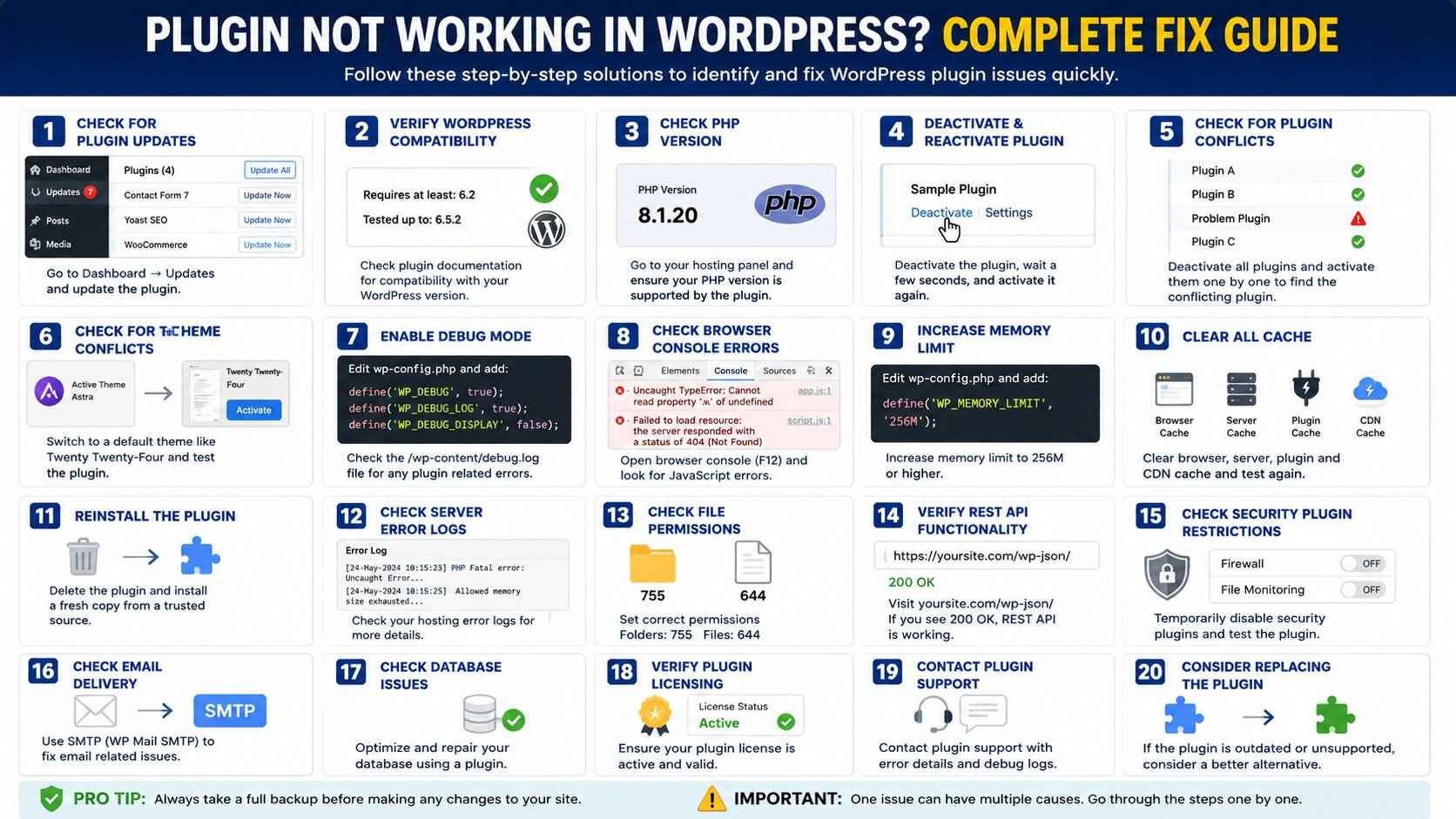
Plugin Not Working in WordPress? Complete Guide to Fix WordPress Plugin Problems
If a plugin suddenly stops working in WordPress, it can be frustrating and potentially harmful to your website. Whether it’s a contact form plugin, SEO plugin, security plugin, page builder, or WooCommerce extension, plugin issues can affect website functionality, user experience, and even business revenue.
The good news is that most WordPress plugin problems can be fixed without advanced technical knowledge.
This comprehensive guide on Uaeseo.agency explains why Plugin Not Working in WordPress and how to identify the root cause and provides step-by-step solutions to get your website back to normal.
why Plugin Not Working in WordPress?
WordPress plugins may stop functioning for several reasons.
The most common causes include:
- Plugin conflicts
- Theme conflicts
- Outdated plugins
- WordPress updates
- PHP version incompatibility
- JavaScript errors
- Server resource limitations
- Corrupted plugin files
- Security restrictions
- Database issues
Understanding the cause is the first step toward finding the correct solution.
Signs That a WordPress Plugin Is Not Working
You may notice one or more of the following symptoms:
- Plugin settings disappear
- Plugin features stop functioning
- White screen of death
- Website crashes after activation
- Error messages appear
- Contact forms stop sending emails
- Shortcodes stop working
- Slow website performance
- Admin dashboard issues
- Missing plugin menus
Identifying these signs helps narrow down the troubleshooting process.
Step 1: Check for Plugin Updates
Outdated plugins are one of the most common reasons plugins stop working.
Plugin developers regularly release updates to:
- Fix bugs
- Improve compatibility
- Patch security vulnerabilities
- Support new WordPress versions
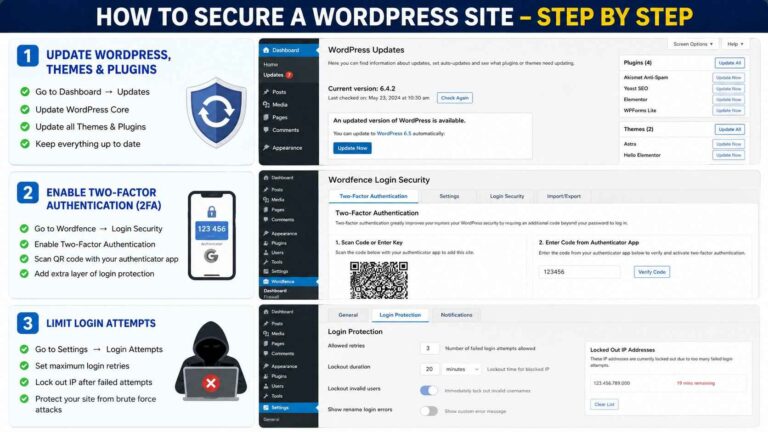
To update a plugin:
- Login to WordPress Admin
- Navigate to Dashboard → Updates
- Select available plugin updates
- Click Update Plugins
Always create a backup before performing updates.
Step 2: Verify WordPress Version Compatibility
Sometimes a plugin works perfectly until WordPress releases a major update.
Older plugins may not support the latest version.
Check:
- Plugin documentation
- Changelog
- Compatibility information
- Developer support forums
If the plugin is no longer maintained, consider replacing it with an actively supported alternative.
Step 3: Check PHP Version Compatibility
Many plugin issues are caused by outdated PHP versions.
Modern WordPress websites typically perform best with current PHP versions.
Problems caused by PHP incompatibility include:
- Fatal errors
- Blank screens
- Plugin activation failures
- Missing functionality
To check PHP version:
- Login to hosting control panel
- Open PHP settings
- Verify the installed version
Contact your hosting provider if an update is required.
Step 4: Deactivate and Reactivate the Plugin
A simple reactivation often resolves temporary issues.
Steps:
- Go to Plugins → Installed Plugins
- Deactivate the problematic plugin
- Wait a few seconds
- Reactivate it
This process refreshes plugin files and settings.
Many minor issues are resolved immediately.
Step 5: Check for Plugin Conflicts
Plugin conflicts are among the most common WordPress problems.
Two plugins may attempt to:
- Load the same scripts
- Modify identical functions
- Use conflicting resources
To identify conflicts:
- Deactivate all plugins
- Activate the problematic plugin only
- Test functionality
- Reactivate other plugins one by one
When the issue returns, you’ve likely identified the conflicting plugin.
Step 6: Check for Theme Conflicts
Sometimes the issue is not the plugin itself.
Poorly coded themes can conflict with plugin functionality.
Testing for theme conflicts:
- Activate a default WordPress theme
- Test the plugin
- Check if functionality returns
Recommended testing themes:
- Twenty Twenty-Four
- Twenty Twenty-Five
- Twenty Twenty-Six
If the plugin works correctly, your theme may be causing the problem.
Step 7: Enable WordPress Debug Mode
WordPress includes built-in debugging tools.
Debug mode can reveal:
- PHP errors
- Fatal errors
- Warnings
- Plugin-related issues
Add the following to wp-config.php:
define('WP_DEBUG', true);
define('WP_DEBUG_LOG', true);
define('WP_DEBUG_DISPLAY', false);
Debug logs are usually stored in:
wp-content/debug.log
Review the file for plugin-specific errors.
Step 8: Check Browser Console Errors
Many plugins rely on JavaScript.
JavaScript errors may prevent plugin features from loading properly.
To check:
- Open website
- Right-click page
- Select Inspect
- Open Console tab
Look for:
- Red error messages
- Failed scripts
- Missing resources
These errors often reveal the source of plugin problems.
Step 9: Increase WordPress Memory Limit
Insufficient memory can cause plugin failures.
Common symptoms include:
- Slow admin panel
- Plugin crashes
- White screens
- Incomplete page loading
Increase memory limit in wp-config.php:
define('WP_MEMORY_LIMIT', '256M');Many hosting providers allow memory adjustments through the control panel.
Step 10: Clear Website Cache
Caching frequently causes plugin issues after updates.
Clear:
- WordPress cache
- Browser cache
- CDN cache
- Server cache
Then test the plugin again.
Cached files often prevent new plugin changes from appearing.
Step 11: Reinstall the Plugin
Corrupted plugin files can cause unexpected behavior.
To reinstall:
- Export plugin settings if possible
- Delete the plugin
- Download a fresh copy
- Install again
- Reactivate
A clean installation often resolves file corruption issues.
Step 12: Review Server Error Logs
Hosting servers maintain error logs that provide valuable troubleshooting information.
Common log entries include:
- PHP errors
- Timeout issues
- Memory exhaustion
- Permission problems
Most hosting dashboards provide access to error logs.
Review entries generated when the plugin fails.
Step 13: Check File Permissions
Incorrect permissions can prevent plugins from working correctly.
Recommended permissions:
Folders:
755
Files:
644
Improper permissions may block:
- Plugin updates
- File creation
- Plugin execution
Check permissions through:
- cPanel
- Plesk
- FTP software
Step 14: Verify REST API Functionality
Many modern plugins rely on the WordPress REST API.
If the REST API is blocked, plugins may stop functioning.
Examples include:
- Page builders
- SEO plugins
- WooCommerce extensions
- Form plugins
You can test REST API functionality using WordPress Site Health.
Navigate to:
Tools → Site Health
Review any REST API warnings.
Step 15: Check Security Plugin Restrictions
Security plugins sometimes block legitimate plugin functions.
Examples:
- Firewall rules
- Login restrictions
- API blocking
- File modification restrictions
Temporarily disable security plugins and test functionality.
If the issue disappears, adjust security settings accordingly.
Step 16: Check Email Delivery Issues
Many users believe a plugin is broken when emails simply fail to send.
Common examples:
- Contact forms
- WooCommerce notifications
- Membership plugins
The actual problem is often email delivery.
Use SMTP instead of PHP mail for better reliability.
Popular SMTP solutions include:
- WP Mail SMTP
- FluentSMTP
- Post SMTP
Step 17: Check Database Issues
Plugins rely heavily on WordPress databases.
Database corruption may affect:
- Plugin settings
- User data
- Form submissions
- Ecommerce functions
Use database optimization tools to:
- Repair tables
- Remove overhead
- Optimize performance
Always create a backup first.
Step 18: Verify Plugin Licensing
Premium plugins often require active licenses.
Expired licenses may cause:
- Feature restrictions
- Update failures
- Activation issues
Check:
- License status
- Subscription status
- Developer account
Renew if necessary.
Step 19: Contact Plugin Support
If troubleshooting fails, contact the plugin developer.
Provide:
- WordPress version
- PHP version
- Plugin version
- Error messages
- Screenshots
- Debug logs
The more information you provide, the faster the issue can be resolved.
Step 20: Replace the Plugin
Sometimes the best solution is replacement.
Consider replacing plugins that are:
- Abandoned
- Poorly reviewed
- Infrequently updated
- Incompatible with current WordPress versions
Look for alternatives with:
- Active development
- Good reviews
- Regular updates
- Strong support
Common Plugin Error Messages and Solutions
Plugin Could Not Be Activated
Possible causes:
- PHP version mismatch
- Missing files
- Server limitations
White Screen of Death
Possible causes:
- Memory exhaustion
- Fatal PHP errors
- Plugin conflicts
Critical Error on Website
Possible causes:
- Plugin incompatibility
- Corrupted files
- PHP issues
Plugin Settings Missing
Possible causes:
- Database issues
- User permission problems
- Theme conflicts
Frequently Asked Questions
Why Did My WordPress Plugin Stop Working After an Update?
Updates may introduce compatibility issues with themes, other plugins, PHP versions, or WordPress core.
Can a Theme Break a Plugin?
Yes. Themes can override plugin functions, scripts, or styling.
Should I Delete and Reinstall a Plugin?
Yes, if plugin files are corrupted. Always create backups first.
Why Does My Plugin Work on One Website but Not Another?
Differences in hosting, PHP versions, themes, security settings, and plugin configurations can affect functionality.
How Do I Know Which Plugin Is Causing Problems?
Deactivate all plugins and reactivate them one at a time until the issue returns.
Final Thoughts
When a plugin stops working in WordPress, the cause is usually related to compatibility, conflicts, updates, server settings, or configuration issues. Fortunately, most problems can be resolved by following a structured troubleshooting process.
Start with the simplest fixes such as updates, cache clearing, and plugin reactivation. Then move on to conflict testing, debug logs, and server diagnostics if necessary.
By following the steps in this guide, you can quickly identify the root cause, restore functionality, and keep your WordPress website running smoothly without unnecessary downtime.